
How do I use Internal Notes on a request?
Last updated: Apr 23, 2026
59
views

How do I use Internal Notes on a request?
1. Navigate to the Request Page
-
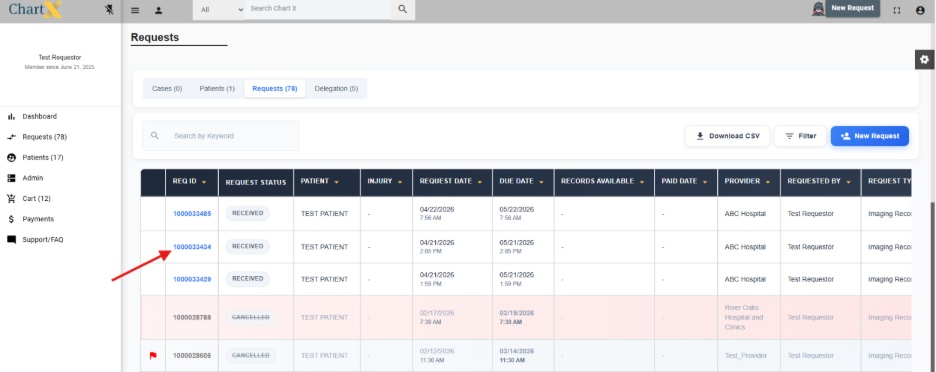
Go to Requests.
-
Select any Request ID you want to add an internal note too.
2. Add an Internal Note
-
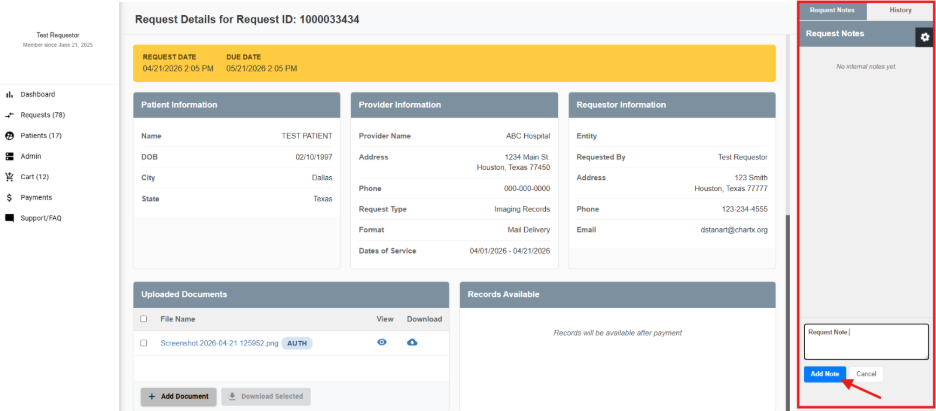
On the right side of the screen, locate the Request Notes column.
-
You may add internal notes related to this request at any time.
-
Please Note: Internal notes are visible only to you and other users in your account. The provider cannot view these notes.
-
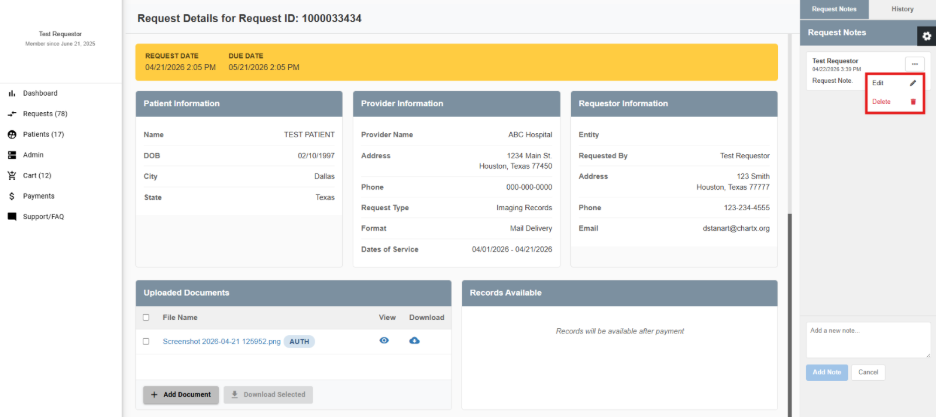
Click Add Note to save your entry. The note will appear in the Request Notes column.
-
Saved notes can be edited or deleted as needed.